Total Pageviews

Monday, September 12, 2011

How to reduce CPU 100% in Windows 7

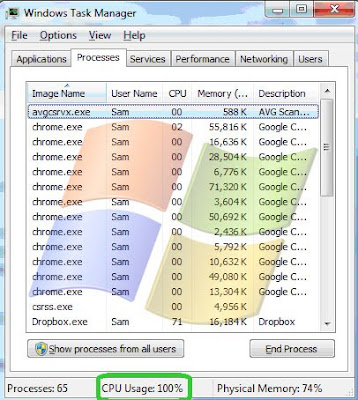
CPU goes to 100% is very common issue now. If you have used Windows XP or Vista you might have noticed this before as well. Now this can be seen in Windows 7 also.

This is usually occurs when you recently upgraded to Windows 7 from Vista. Though the CPU 100% issue can also cause due to a computer virus issue. If you do not see any specific process which is running at high, a virus may cause this issue. It is recommend you to run your up dated computer cleaner and other security (Antivirus and anti spyware program) program at least two times.

If this is a process specific such as WMNSS (Windows Media Network Sharing Service), you try the following below steps.

Before trying for anything else open your task manger and check if Windows Media Network Sharing Service (WMNSS) is running between 30 - 48% of your CPU all by itself.

Open your Media Player. Click File -> Manage libraries -> select each library (music, video, pictures, recorded tv and check the paths that it is managing and make sure it is not very close to the root (C:) of the C: drive. For example, it should be something like c:\users\sam\Music and c:\users\Public\Music NOT c:\users as they will cause the whole directory tree to be re-indexed over and over.

You need to repeat the process for each user if all users have added managed folders which are actively changing on a regular basis.

This is the CORRECT way to adjust the WMNSS/WMPNetwk.exe process issues. If this is the culprit behind the issues the CPU usage will drastically drop down.

Also the CPU 100 % issue can also be seen due to corrupt registry items. You may use a good registry booster program to repair Windows registry.

Friday, September 9, 2011

How to Clean your PC


PC performance is a great concern for all PC users. Over a time due to any reason a PC can slow down. This needs to be realized that the performance of any machine is a combination of all the factors or components that are associated with it. If any of the components is not working well or it is damaged or corrupted, it will affect the performance of the machine. The same thing goes with a PC system also.

Few of the important aspects about the Windows performance issue are described below. All the steps mentioned below are important to performance. You’ll see a drastic difference after performing these steps.

Clean your desktop and run disk cleanup utility- Keep you desktop clean and do not place all the files and folders in the desktop all the time. Try to reduce number of folders in the desktop.

Disk cleanup- Open computer or my computer right click on your root drive (usually C), go to properties and click disk cleanup. It scans and shows you the files to be cleared. Select all the files and remove them.

Remove all the unwanted programs- PC users usually follow a practice to download and install many program in their PCs and used it for once or twice and forget about them. If you have any such unwanted programs you may remove from add and program programs.

Run Windows basic utilities- Microsoft provides it cleansing and repairing tools with all the version of windows like Disc cleanup, Defrag, check disc, scan disc sfc /scannow and may more. We recommend you to run periodically (say at least once in a fortnight).

Remove unwanted startup programs- A slow PC issue can be found due to too many programs area listed in the startup. Go to start->Select run-> Type in msconfig and press OK. When System utility window appears select startup tab. Now look for all the programs that are not necessary for Windows startup. Though all the listed items are not necessary for Windows startup but you may leave some programs such as your wireless connection or your antivirus program.

Clear out all temporary and unneeded files- Remove all the dump files, temporary, prefetch and other duplicate files from the PC. For a faster and speedy PC especially for faster Internet connection all temporary files need to be removed. Clearing temporary files is necessary in order to clean your PC.

Scan and remove computer virus- Computer virus are the most dangerous programs for your PC. There are various kinds of viruses online. They enter through the internet connection in your PC. An antivirus is the official solution for this. Run an up dated antivirus program to eliminate any threat from your system.

Run an anti Malware program- Malwares are different from a Virus and usually an antivirus does not remove a Malware from PC. There are some good freeware are available online that can be used to remove Malware for a proper PC diagnostics and to get rid from a Slow performing system.

Use sfc /scannow- This is one of the best Windows utilities. It scans and repairs all the bad and damaged sectors in Windows PCs. It is very effective and can help to repair system damaged files. It is very easy to perform.

Go to Start->Run-type in cmd and run it as an administrator.

When command prompt appears type in “sfc /scannow” (Without quotes). Press Enter.

Practice Safe browsing- The internet is the main gateway of any kind of infection in your PC. In spite of using all protection and security tools there are chances that your system may get infected by any kind of malware program. We recommend practicing a safe browsing to protect you from any such malicious items. Never open or click any unknown link or item that appears to be unsafe.
Thursday, September 8, 2011

How to use System Restore in Windows 7

System Restore is not a utility or tool which is used regularly unlike other Windows utilities. However the importance of the System restore feature is very high. It is generally used when all the other tools or resolutions do not work or fail. System Restore helps to reverse all the changes that have been made during the time and it put the system back to the date which you have selected. In a way helps you to get rid of all PC related issues including slow PC issue.

System Restore keeps notes of everything you change on your computer, enabling you to reverse them with a few clicks.

System Restore is switched on by default, though it's always worth double checking. Type ' system restore' into your Start menu and you'll see the three key options – opening System Restore, and shortcuts to creating and restoring from a Restore Point.

It is very easy to perform a system restore in Windows 7.

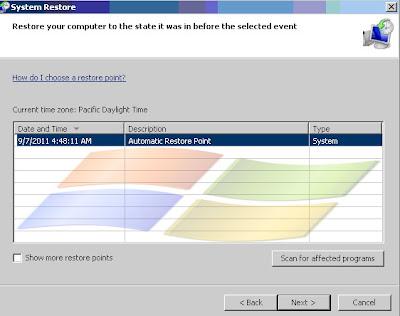
Click Start->In start search type in “system restore” (without quotes). When appears in the list click the icon.

The System Restore wizard opens. Click Next to proceed further. Now choose the appropriate date you want to restore your system and click finish. It takes few minutes to restore the system.

Windows 7 creates system restore points periodically, once a week or just before you install new software. The important thing in it is- you can create your own Restore Points whenever you like. For the most part, though, this isn't necessary.

Note-System Restore is not a file backup tool – it's a system backup tool. There is a big difference between both of them.

System Restore's task is to guard for Windows system files; all the programs that you install; Windows registry settings that get changed; and other behind-the-scenes elements. It does not alter your document.

Whenever any disaster occurs with your system, you can get your system up and running without needing to worry about anything you created before the Restore Point being wiped away.

RESTORE POINT: As discussed above Windows creates an automatic restore points periodically and when you install or uninstall any software program. However you can also create your own Restore points.

The best time to make a System Restore point is when you've just installed or uninstall Windows 7 and your drivers, and everything's working beautifully. This is the safest way Windows 7 provided with.

System and security

System Restore works simultaneously with Windows Backup. although this isn't switched on by default. Click Start and in Start search type in “System and Security” (Without quotes).

Wednesday, September 7, 2011

Common computer startup problems


Computer startup problems can be of different kinds. Such as if you are not able to boot your Windows at all, or it starts but does not go beyond windows logo, or sometime Windows displays an error message on the screen. Usually the most common issue is a slow pc startup problem, which can be seen very easily in any computer.

There can be many reasons behind these issues. Sometime your entire operating system may be corrupted. On the other hand any infection such as virus spyware, malware, adware etc can create this issue. An incompatible hardware it can also affect startup issue for sure. Below are the common causes and possible solutions that are written for all startup problems.

Windows file is corrupted- Windows executes many files while it’s booting process. If any of the file is missing or damaged it will affect the booting sequence or boot process. In all versions of Windows operating systems there are three important files that get loaded into main memory when Windows boots. They are:

Boot.ini

NTLDR

Ntdetect.com

The above three files are very important to boot Windows successfully and if any of them is missing Windows cannot boot at all. If your startup problem is pertaining to a missing or damaged file you can either repair or replace the file. If you have Windows recovery disk (It comes along with your operating system usually nowadays) you can run the recovery disk and it will repair the damaged files.

Computer Virus- One of the most noteworthy reasons behind booting issues is a virus infection. A virus can go to any limit and sometime a virus can stop all the activities in your system. The startup problem is one of the know issues created by a virus program. I recommend using an up to date antivirus and antispyware program.

BIOS or CMOS Issues – During the POST or power on Self Test a series of beeps are generated by your system, which means hardware problem is occurred. This means that the BIOS encountered hardware or driver issues. These issues can be best resolved after thorough investigation by a hardware professional. They will replace the affected hardware component. This will also solve your computer startup problems.

A corrupted master boot record- The master boot record in a system resides in the first sector on the hard disk and is accountable for commence the Windows boot process.

The master boot record stores the partitioning table for the disk in addition to a small program called the master boot code. This helps to start Windows system. If the master boot record is damaged, the partition boot sector can’t do its job and Windows cannot be started. In case the master boot record is corrupted, you can use the good Recovery Console tool to fix it. Recovery Console Window can be accessed when Windows boots.

If startup is slow- this is again a very common issue in Windows. To increase startup rate go to the msconfig windows, select Startup tab and uncheck all the unwanted startup items from the list and reboot your system.

Tuesday, September 6, 2011

How to Speed up Windows performance

Windows is one of the greatest successes for Microsoft as well as for all the pc users across the world. Windows is very user friendly and of course widely accepted operating system. As soon as we hear about a computer system no one but Windows conjure up in our mind. However over a time almost all PC become slower and sometime it can be very severe issue.

I have summarized few of the important facts and figures to enhance windows performance that are mentioned below.

Check your faulty hardware- Hardware is the first and foremost aspect of any computer system. Without a great hardware combination we cannot imagine that a PC will be working at its maximum speed and performance. Thus this needs to be ensured that the hardware components should be in working condition and good in use.

Reduce visual: - Windows is very rich in visual effects. It has many such graphics features and functions. You may certainly lower them down and it enhances its performance for sure.

Remove all browsing cookies- If you are constantly using your Internet browser it builds up cookies. On the other hand an enormous amount of cookies can reason slow PC or slow Internet connection. So once in a fortnight you may remove them.

Clear Temporary files and folder: - Many temporary files and folder that are not essential for windows XP normal functionality should be removed completely from the PC regularly.

Always use up to date antivirus and anti Spyware program to remove any infection- A computer virus or any other malware such as a spyware, Trojan horse worm can cause a system slow. Sometime it is also seen that a virus may stop all the functionalities and operations in a system. Any infectivity in your PC such as Virus, Malware or Adware entries present in the system have an effect on entire PC’s pace and it causes a slow PC, poor performing and of course slow browsing also.

Always use Windows or any other firewall to protect your PC-: Infections such as virus, malware, spyware, adware etc make security holes in your PC. Firewalls are good to look after your PC and data and very supportive from system’s safety measures point of view. It without doubt stops and do not let any apprehensive or dangerous entry into your computer. However sometime few firewalls may convert your computer into a slow performer.

Remove unused programs-: If you check your add and remove program directory you’ll find that there are many such programs those you have never used or used for a day or two. Remove all such programs and save some hard drive space.

Try System Restore – System restore is one of the best Windows features. Now in Windows 7 there is another kind of system restore available. In Windows 7 it creates byte by byte map in the backup system so that the extract copy of the Windows and other data can be restored.

Do not change anything at all: - Sometime if you have tried many tricks and optimization steps and even after doing so many things it didn’t change anything, just leave the system as it is for some days. This works many times.

Monday, September 5, 2011

How to make your PC run faster

Slow PC or slow computer is a real pain for all PC users. A slow PC issue can be caused due to different factors. However a slow PC can be made run faster with the help of few important steps. Following below points should always be considered if your PC runs slow.

Unload unwanted startup items: - If startup of your windows 7 system is very slow you may try this trick and I am sure it can increase the startup rate up to 80%. Just un-select all the programs that are not needed to start the windows 7. That is there are only few programs that are required to boot the system and other all the unnecessary. Nowadays every software vendor follows a practice of inserting his software within windows startup. Every software is programmed such a way that when we install it resides into windows startup. Installing many applications in your system it creates a long list which hinders the normal startup. Removing them from startup list certainly speed up your PC.

Remove all the temporary files-many garbage files and folders that were used for a while or during windows processed certain things or processes. Such as many temporary files in your PC. There are many types of such temporary files stored in your PC. If they get cleared it will speed up your PC.

Visual effects should be reduced- from windows 7 onwards all the contemporary windows operating system are very rich in graphical features and functions. Reducing some of the graphics from the windows 7 won’t make any difference in its normal functionality at all, but it certainly will speed up your PC. It is because graphics use huge memory and it keeps busy with them.

Increase virtual memory size: - It is usually says if random access memory is not sufficient windows needs a virtual memory to run the applications that are very heavy to process. Let me tell you a fact that virtual memory needs all the time even if random access memory is sufficient to run the applications. So verify the virtual memory size and increase it if it’s not set to the appropriate level.

Display Hidden Folders in 7: - By default, Windows 7 maintains imperative system files and folders concealed to keep people from removing files they shouldn’t. To show hidden files, open Control Panel and double-click on Folder Options. Click on the View tab, and then click the radio button for “Show hidden files and folders “Now when you go back into explorer you will see extra folders you were not able to see beforehand. This is also helpful to speed up your PC.

Stop some unnecessary services:-there are many such services that are not always required by windows to run. But still they run all the time whenever a window starts. I would suggest stopping such services if not needed. One of the examples of such service is background transfer intelligent service.

Friday, September 2, 2011

How to speed up your laptop


Are you desperate to speed up your laptop speed? Are you searching for an efficient way, to speed up laptop? Over a time almost all machines become slow due different reasons. For an instance a computer or laptop can be slower if there is any hardware fault, or any computer virus, or your registry is corrupt or bloated. However there are many ways or tweaks that can be successfully applied and they will be helpful to make your laptop run faster.

A hardware specification is slightly different in laptop when we compare with desktop machine. Such as power management is slightly different from a desktop version. It works on in built power backup which is called battery unlike a desktop machine which uses UPS (uninterrupted power supply system). Also the memory structure can be little changed in laptop. DIMMs are standard in desktop computers, and common types of DIMMs. This is some minor modification in a laptop otherwise it’s the same.

Most of the time behind a slow PC issue many factors are responsible. Few of the common are:

1. Any hardware fault

2. A Computer virus

3. Registry is corrupt/bloated

4. Memory related issues or low memory

5. Too many programs are installed in your PC.

6. High graphics or animation can be a possible slow down such as in vista and windows 7

7. Virtual memory is low can also block speed especially using heavy applications to process.

8. Badly Fragmented Hard Drive

9. Poor Security Software that is stealing system resources

10 . Hard Drive getting full

These are the most common factors or issues that usually affect your PC speed and performance.

Reduce visual or graphic effects: - Windows operating system is very rich in visual and graphical effects. However the various effects consume great memory usage as well. If you lower few of them or set windows for best performance this will be a great help in order to get maximum speed in your machine.

Remote too many programs from your computer: - Too many programs are also responsible for many sorts of diseases in your PC. Go to the control panel- and add and remove program list. Scan the entire list of the programs and remove all the programs that are not essential. It will free up huge space in your PC if the list is long for unneeded programs.