Total Pageviews

Showing posts with label speedup my pc. Show all posts

Wednesday, September 21, 2011

How to remove malicious items from your computer

The registry is one of the most vital components of the Microsoft Windows operating system. It is a database containing virtually all system, software, hardware and user settings. The registry keeps record for every single program or hardware component. If anything missing in the registry your program might not work properly or even won’t start at all.

All the major dangerous and malicious items attack and modify Windows registry at the first sight. These malicious programs add various registry entries, create new keys, change default values. This is made in attempt to register a pest in the system, alter essential settings of the Windows operating system and installed software. All such changes are made to harm the operating system and the user data.

We have described below how to remove all such malicious and dangerous entries from Windows registry. However, editing the registry is a complicated task and involves many risks in it that only advanced users and professionals can accomplish safely.

An antivirus, antispyware and other computer cleaner program can remove these registry threats. However there are some other malicious items that cannot be removed by very powerful spyware removal tools. A security (Antivirus and antispyware programs) tool cannot examine each recent pest, and new pests appear almost every day. Anti-spyware tools rely on spyware definition databases. Thus few of the dangerous programs remain unrecognized in the registry or in your system.

This is why we need to go some extra miles sometime to remove malicious items from a system; however it is strongly recommended that kindly do not modify the registry if there is no real need for this.

The following steps show how to edit a registry manually.

Before you edit the registry: - It is strongly recommended to create the registry backup before modifying any registry value manually.

Click start->Select Run-> type in “regedit” (without quotes) and press enter.

Click file menu on the top left pane of the registry editor and select export option. It will ask you to save the registry backup. Save the backup somewhere in safer place in the system.

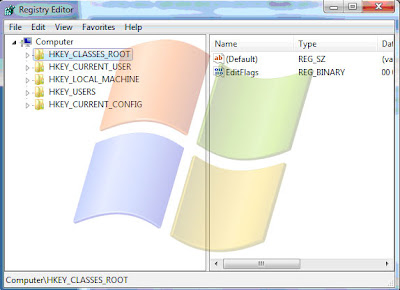
To edit the value, right-click on it and select the Modify option from the appeared menu.

You can also double-click on the value with you left mouse button or use the Edit menu. Type in the preferred value in the appeared window and click OK. This can be repeated with other registry keys as well.

Perform the same sequence of actions as just described in order to delete the value or the registry key. However, this time you will have to select the Delete option instead of Modify.

To add a new registry key or a new value, click on the Edit menu, select New and choose a type for the entry.

You can export any key or value from the registry to the defined file. Right-click on the object and select Export (on Image 7 it is in the red box).'

Enter a file name. Export registry files should have the .reg extension.

Export registry entries to a file

You can also import a certain value or a key. Click on the File menu and select Import. Then choose the file containing objects you want to import.


If after modifying the registry something goes wrong, you can restore the registry from a backup.

Warning: - Editing registry requires a great deal of professional expertise, it is advised not to modify any registry value if you are not sure about it. We recommend you to use an automatic registry booster program if you have any doubt about editing registry.

Monday, September 19, 2011

My Web browser Hijacked

Thousands of newly generated malicious programs such as virus, Trojan, worm or any other malware are getting installed in a PC daily. Most of the time a user does not pay much attention towards such malicious entries however when these dangerous items start creating issues in the computer a user realizes about them. Below is a listing of potential symptoms a user may encounter when their browser or computer has been hijacked.
  • Browser behaves strangely such as default home page changes to a different page automatically; user may redirect to some different WebPages to buy something. Link
  • Slow computer and slow browsing issue.
  • Nowadays very often you can experience that your search is replaced by other search bar and new search tools.
  • Many other browser settings have been changed automatically.

Possible solutions

A malicious program is designed in such a way that it becomes very difficult to remove it. Though an anti spyware and other computer cleaner programs help to eliminate these items but sometime few of the entries remain in the browser of in your system. Below are recommendations on how these programs can be prevented and removed.

Freebies or freeware installation

Many times while installing some freeware programs, they install some spyware in built with them. These programs are supported by automatically installing spyware programs. It is recommended when you install any freeware program do verify what all other programs are you going to install with it. Sometime few other programs are also installed intentionally with the main program. For a safer side you may uninstall these unwanted programs from your computer.

Use Add and Remove programs

There could be many programs that are not being used by you. If you wish you may go to Add and remove program folder and remove them. This is a safer way to remove any program from your system.

Some examples include the ASK, Google Toolbar, Yahoo Toolbar, and Windows Live Toolbar. These all toolbars are from some reputed organizations and they will be easily removed from Add and Remove program. However if the tool bar is meant for a spyware program, it will be difficult to eliminate from your computer.

This is very common phenomenon with a spyware program. If you face any such difficulty boot the computer into Safe Mode and then uninstall the program while in Safe Mode.

Reset and Restore your browser settings

As discussed above few of the web pages and programs are designed to automatically change your browser's settings. For example, your home page might be changed or when you type any web address it redirects to some other WebPages. To eliminate these issues follow the below steps.

Shut down all the browsers except one browser Windows.


Click on tools :-> Option and select Advance option in the option window.

Locate Reset browser settings option and click it.

Note- Reset option will erase everything you have saved in the browser such as bookmarks, username password etc.

Close the browser and reboot your system.

Correct the settings changed, such as changing your home page back to your original home page.

The next time the browser is opened it should have the correct settings. If still it shows some issues you may run a good computer cleaner or antispyware program.

Use some good spyware and other malware detection and removal programs

Browser hijacking or any other malware threat has become a common issue today. To prevent these threats there are some great anti malware and antispyware program are available. They are available in both freeware and paid versions. Few of the good freeware programs are listed below.

  • Mbam or Malwarebytes (both versions available)
  • Microsoft's Windows Defender (preinstalled most of the time)
  • Ad-aware from Lavasoft (both versions available)
  • Spybot Search and Destroy (both versions available)
  • SpywareBlaster from Javacool Software

Few of the spyware and other malware programs are difficult to remove from a computer. If you remove them they get reinstalled after rebooting the computer. It is recommended to reboot your system in safe mode and then uninstall these programs.

Switch to a new browser

If you severely affected by your browser hijacking issues with your Internet explorer, you can better to switch to a new web browser. There are few more browsers that have become popular among PC users. Google’ chrome and Mozilla Firefox are of them.

For a better and advance troubleshooting you may get assistance from our expert advisors. Or you may get a Live Remove support help directly from our certified professionals.